Training Guide
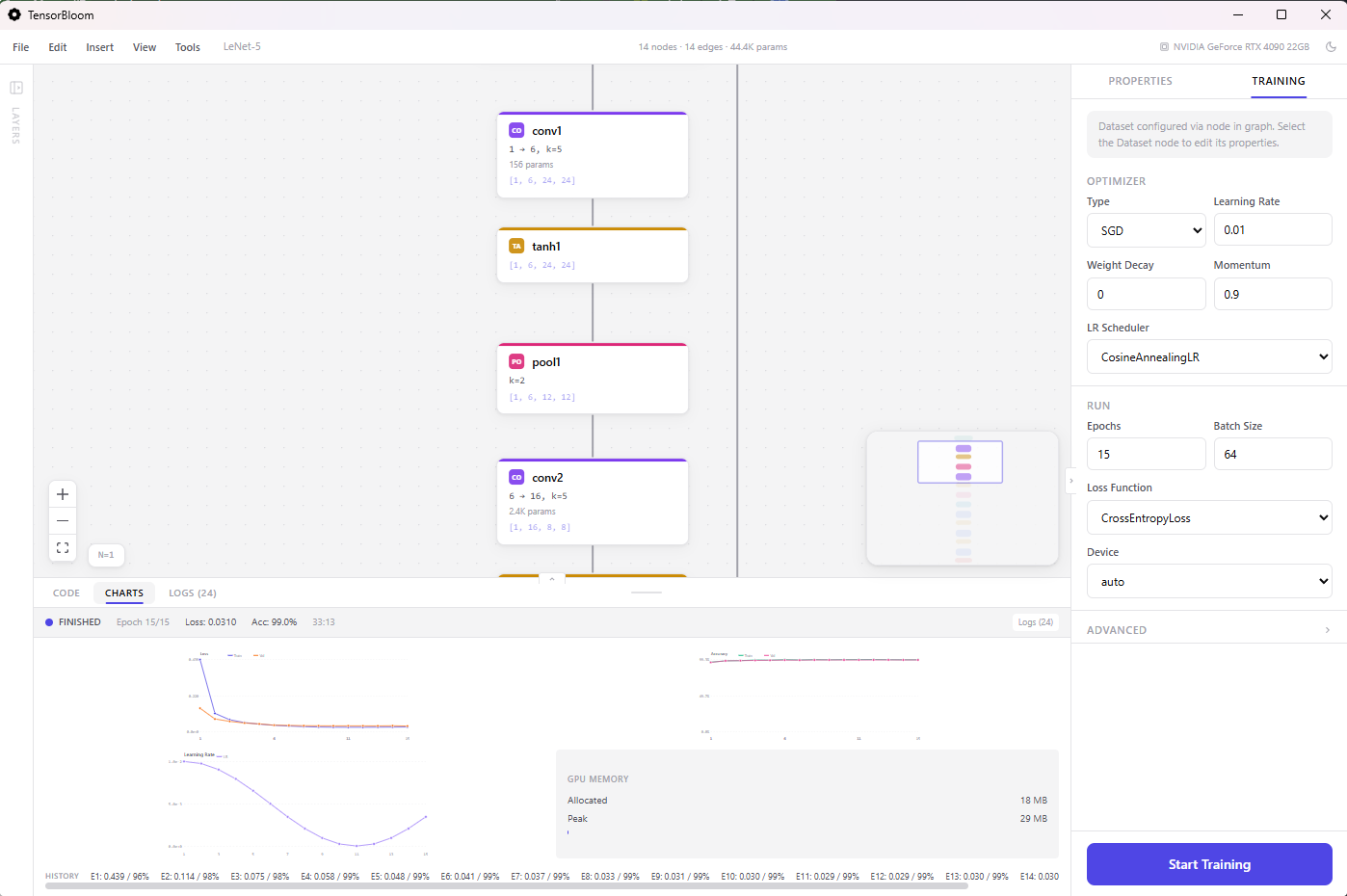
TensorBloom trains PyTorch models directly from the graph editor. This guide covers all training configuration options.
Getting Started
- Build or load a model with a Data node and a Loss node
- Click the Training tab in the right panel
- Configure optimizer, learning rate, and epochs
- Click Start Training
The training loop runs in the Python sidecar process, so the UI stays fully responsive. Progress is reported via the Charts and Logs tabs.
Optimizers
Four optimizers are available, each with configurable parameters:
SGD
Stochastic Gradient Descent with optional momentum and weight decay.
- Learning rate — step size (default: 0.01)
- Momentum — acceleration factor (default: 0.9)
- Weight decay — L2 regularization (default: 0)
Best for: convnets, well-understood architectures where you want fine control.
Adam
Adaptive learning rates with first and second moment estimates.
- Learning rate — (default: 0.001)
- Betas — moment decay rates (default: 0.9, 0.999)
- Weight decay — L2 regularization (default: 0)
Best for: most tasks, especially when you want fast convergence with minimal tuning.
AdamW
Adam with decoupled weight decay (Loshchilov & Hutter 2017). Weight decay is applied directly to the parameters rather than through the gradient.
- Same parameters as Adam
- Weight decay — (default: 0.01)
Best for: transformers, language models, any architecture where proper regularization matters.
RMSprop
Adaptive learning rates using running average of squared gradients.
- Learning rate — (default: 0.001)
- Alpha — smoothing constant (default: 0.99)
- Momentum — (default: 0)
Best for: recurrent networks, reinforcement learning.
Learning Rate Schedulers
Schedulers adjust the learning rate during training. Select one from the Scheduler dropdown.
StepLR
Multiplies the learning rate by gamma every step_size epochs.
- Step size — epochs between reductions (default: 10)
- Gamma — multiplicative factor (default: 0.1)
CosineAnnealing
Smoothly decreases the learning rate following a cosine curve from the initial value to a minimum.
- T_max — total number of epochs for one cosine cycle (default: equals total epochs)
- Eta min — minimum learning rate (default: 0)
OneCycleLR
Ramps up the learning rate, then anneals it down. Often achieves better results in fewer epochs (Smith & Topin 2018).
- Max LR — peak learning rate (default: 0.01)
- Automatically configured based on total epochs and steps
ReduceLROnPlateau
Reduces the learning rate when a metric stops improving. Monitors validation loss.
- Factor — multiplicative reduction (default: 0.1)
- Patience — epochs to wait before reducing (default: 10)
Loss Functions
The loss function is determined by the Loss node in your graph. Drop a loss node, connect your model’s output to it, and connect the Data node’s target handle.
Available loss functions:
| Loss | Use Case |
|---|---|
| CrossEntropyLoss | Multi-class classification (expects class indices) |
| NLLLoss | Multi-class classification after LogSoftmax |
| MSELoss | Regression (continuous targets) |
| L1Loss | Regression with outlier robustness |
| BCELoss | Binary classification (after Sigmoid) |
| BCEWithLogitsLoss | Binary classification (raw logits, more stable) |
| HuberLoss | Regression, smooth L1 near zero |
| SmoothL1Loss | Regression, similar to Huber |
| KLDivLoss | Distribution matching (VAE, knowledge distillation) |
| CosineEmbeddingLoss | Similarity learning |
| TripletMarginLoss | Metric learning with anchor-positive-negative |
| HingeEmbeddingLoss | SVM-style margin loss |
| CTCLoss | Sequence-to-sequence without alignment (OCR, ASR) |
Advanced Settings
Expand the Advanced section in the Training panel for additional options.
Mixed Precision
Enables automatic mixed precision (AMP) training using torch.cuda.amp. Operations that benefit from lower precision run in float16, while numerically sensitive operations stay in float32.
- Reduces GPU memory usage by up to 50%
- Can speed up training on GPUs with Tensor Cores (NVIDIA Volta and later)
- No accuracy loss in most cases
Gradient Clipping
Clips gradient norms to prevent exploding gradients. Set the max norm value (default: 1.0 when enabled).
Recommended for: recurrent networks (LSTM, GRU), transformers, and any model that shows NaN losses during training.
Early Stopping
Stops training when validation loss stops improving for a specified number of epochs (patience). Prevents overfitting and saves time.
- Patience — epochs to wait (default: 5)
- Monitors validation loss
Random Seed
Set a fixed random seed for reproducible training runs. When set, PyTorch, NumPy, and Python random number generators are all seeded.
Deterministic Mode
Forces PyTorch to use deterministic algorithms. Combined with a fixed seed, this guarantees identical results across runs on the same hardware. May reduce training speed slightly.
Auto-Fix System
When you click Start Training, a preflight check validates your graph before the first epoch:
Shape Inference
The auto-fixer propagates tensor shapes through the entire graph. If it finds a mismatch — for example, a Linear layer expecting 256 features but receiving 512 — it corrects in_features automatically.
Dimension Correction
Fixes include:
in_featureson Linear layersin_channelson Conv1d, Conv2d, Conv3d layersnum_featureson BatchNorm layers- Flatten dimension calculations
Target Compatibility
The preflight check verifies that the loss function is compatible with the target tensor:
- CrossEntropyLoss expects integer class indices
- MSELoss expects float targets with matching shape
- BCEWithLogitsLoss expects float targets in [0, 1]
If the target shape doesn’t match the model output, the auto-fixer adjusts the final layer’s output features.
Training Progress
Charts Tab
Live-updating plots showing:
- Training loss per epoch
- Validation loss per epoch
- Accuracy (when applicable)
Logs Tab
Detailed per-epoch output including:
- Loss and accuracy values
- Learning rate (when using a scheduler)
- Epoch duration
- GPU memory usage (when training on CUDA)
- CUDA availability warning if no GPU is detected
Toolbar Indicator
A progress indicator appears in the toolbar during training, showing the current epoch and overall progress without needing to open the Training panel.